VSCode Integration
While Rust is wonderful to work with- getting started with the tooling can be a bit daunting- everything's all over.
The Reloaded Project Template provides sane defaults for VSCode (Visual Studio Code) integration, including testing, code coverage, and professional Rust development workflows.
Quick Start
Install the recommended VSCode extensions:
- rust-analyzer - Essential Rust language server providing IDE features (required for VSCode development)
- Coverage Gutters - Visualize code coverage in your editor
- Crates - Manage crate dependencies and versions
Info
Coverage tools are automatically installed when you first run coverage tasks.
Workspace Structure
The Reloaded template is designed to work with separate VSCode workspaces for different purposes:
Source Code Development
Open the repo in VSCode for Rust development. The workspace Cargo.toml covers all crates under src/, so VSCode features work automatically:
- CodeLLDB debug profiles generate automatically
- Ctrl+Shift+B build task runs without configuration
- rust-analyzer provides full IDE features
- All development tasks are immediately available
Documentation Editing (doc)
Open doc in VSCode when editing documentation. It contains the MkDocs project and markdown files, with VSCode settings optimized for documentation work.
Info
Features like CodeLLDB debug profiles and the default build task (Ctrl+Shift+B) need Cargo.toml at the workspace root. Use the main workspace for development and doc for documentation so each tool works correctly.
Debugging
Install the CodeLLDB extension for native debugging support. Debug profiles are automatically created when the extension is installed and the workspace is opened.

Debugging Rust applications with CodeLLDB in VSCode
Warning
If debug profiles are not available, run Ctrl+Shift+P → "Debug: Add Configuration..." to generate them manually.
Testing and Tasks
Access pre-configured development tasks via Ctrl+Shift+P → "Run Task". The template includes three essential workflows for automated testing and coverage generation.

Access tasks via Ctrl+Shift+P → "Run Task"

Pre-configured development tasks for testing and coverage
Formatting
The template configures VSCode to format Rust files automatically when saved using rustfmt.
Linting
Lints are checked on save, giving you fast feedback on code quality issues.

Clippy integration by default provides advanced linting out of the box
Tip
Combine this with VSCode's Auto Save feature for continuous error checking as you type.
This isn't enforced as it's user preference.
Coverage
Generate code coverage reports with cargo-tarpaulin and visualize them in your editor using coverage-gutters.
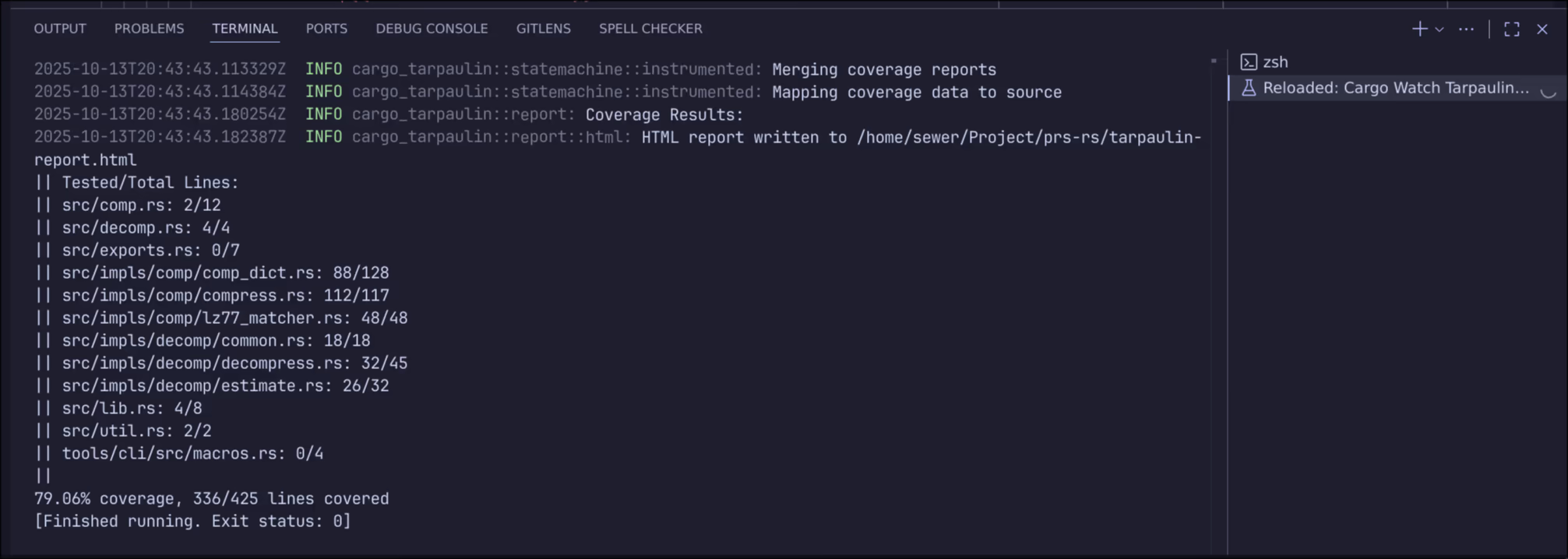
Run "Auto Coverage on Save" task via Ctrl+Shift+P → "Run Task"
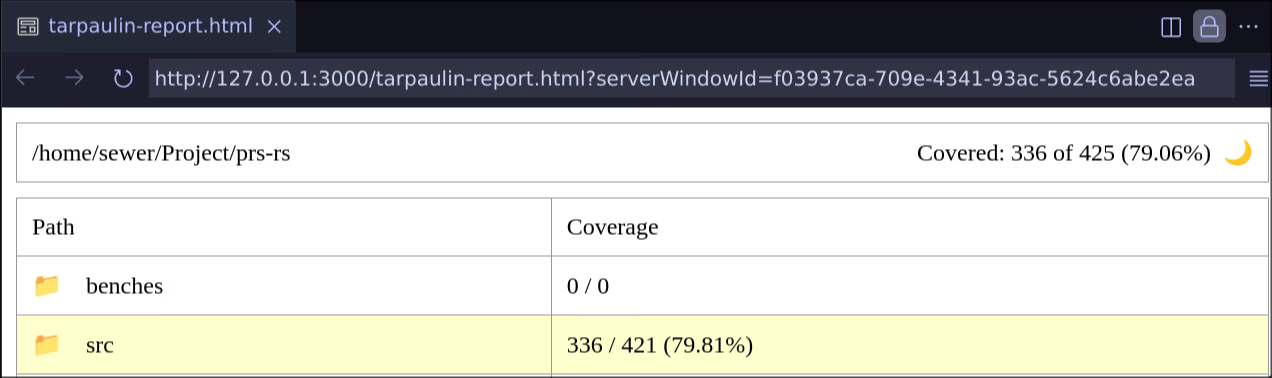
Preview coverage report via Ctrl+Shift+P → "Coverage Gutters: Preview Coverage Report"
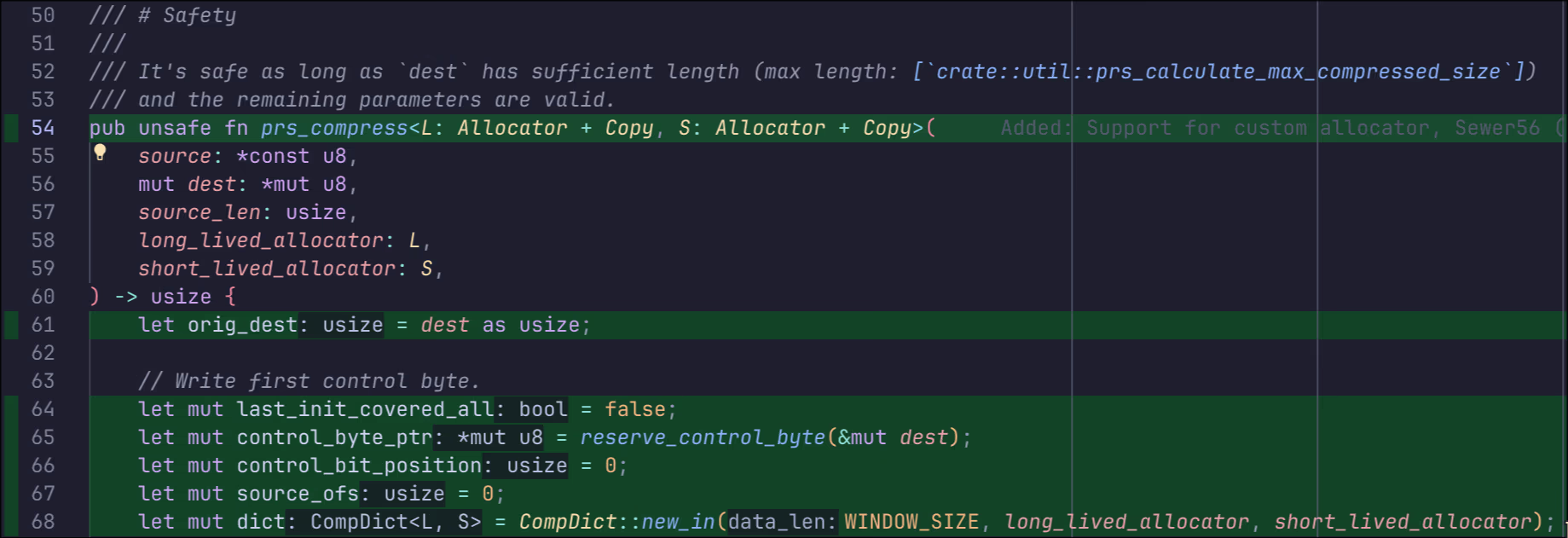
Coverage show covered (green) and uncovered (red) lines in editor.
Activate with Ctrl+Shift+P → Coverage Gutter: Watch
Tip
Enable Coverage Gutters: Watch alongside Auto Coverage on Save for live coverage updates as you code.
Integrate with Non-Template Projects
Info
If your project was not built on Reloaded template, here's how you can recreate the VSCode setup parts.
Copy the template configuration files to your project and install the recommended extensions:
- templates/general/.vscode/settings.json - VSCode settings with
rust-analyzerand coverage configuration - templates/general/.vscode/tasks.json - Pre-configured development tasks
Create a .vscode directory next to your Cargo.toml and copy these files. Then open the project in VSCode to enable full functionality.
See the main documentation for more details.